-
1
Open UTM on Your Mac
Find UTM in your Applications folder and double-click it to open. You will see the UTM home screen — it might be mostly empty if you have no virtual machines yet. That is perfectly fine!
-
2
Click "Create a New Virtual Machine"
On the UTM home screen, click the big Create a New Virtual Machine button (it usually has a big plus sign or is shown right in the centre).
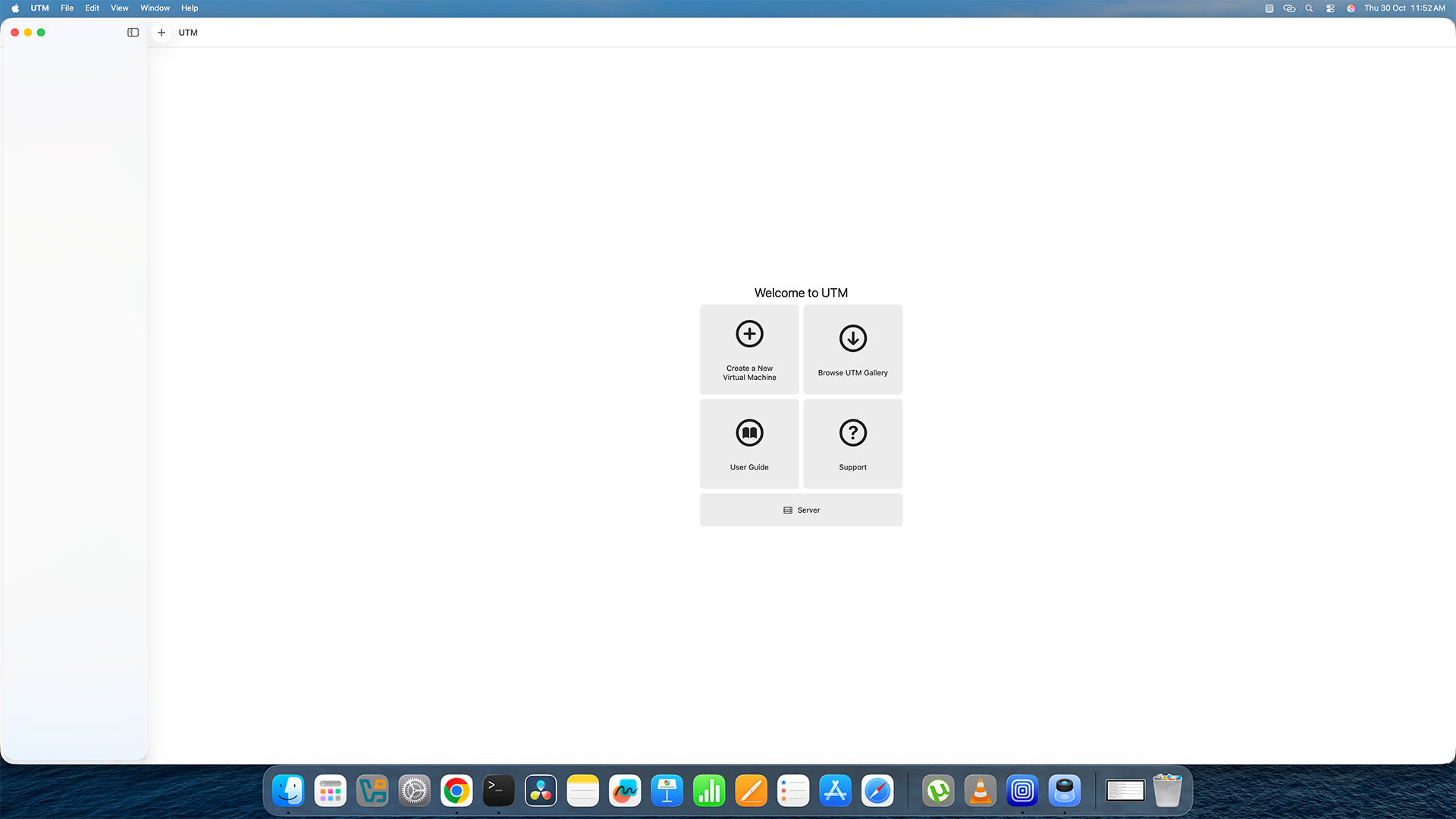
Click "Create a New Virtual Machine" on the UTM home screen. -
3
Choose "Emulate"
A window will pop up asking how you want to create your VM. Click the Emulate option. This tells UTM to act like another type of computer so it can run your virtual machine.
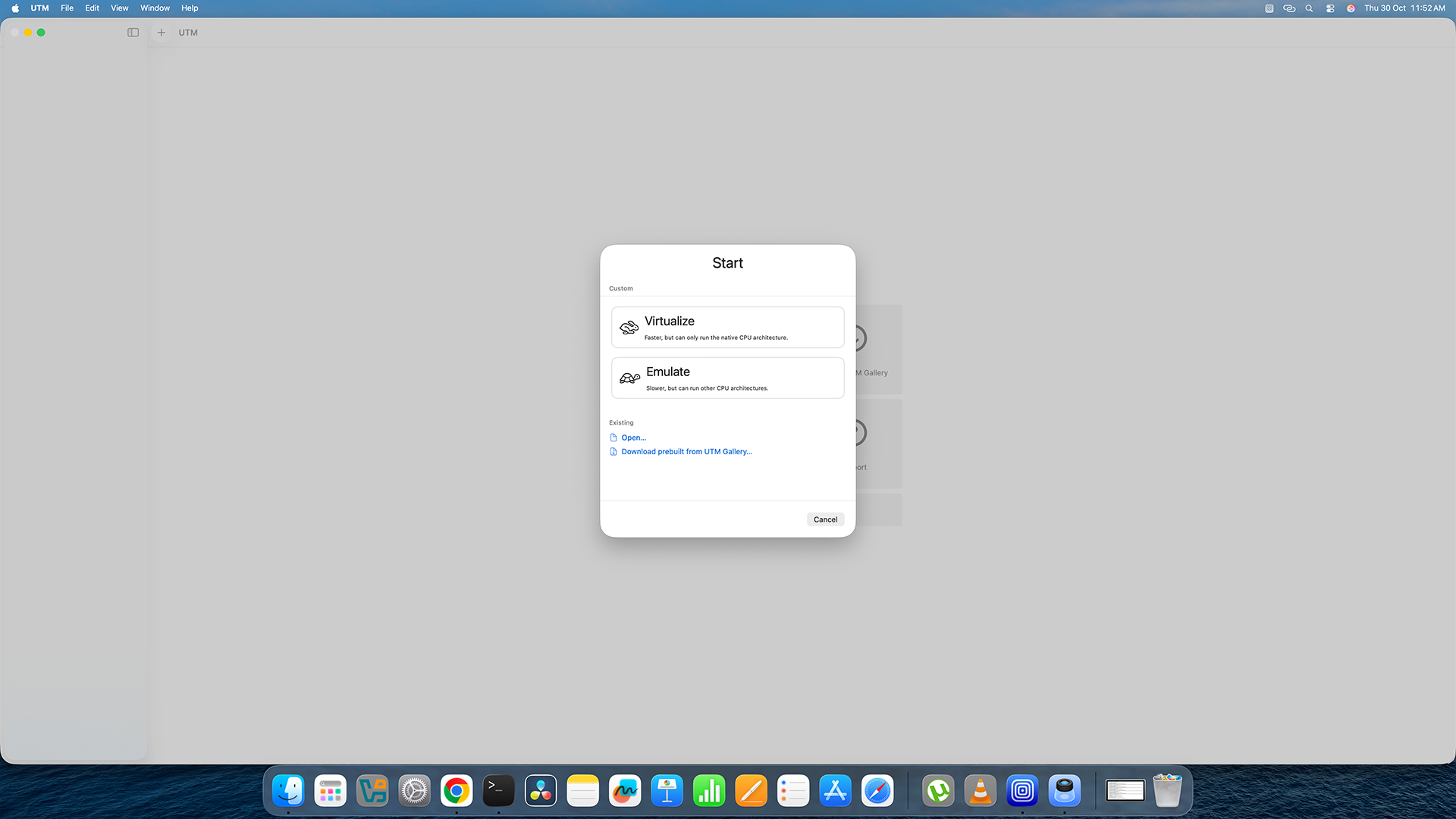
Select the "Emulate" option from this screen. -
4
Select "Other"
On the next screen it asks what operating system you want to use. Choose Other from the list. This is the correct option for importing an existing virtual machine file.
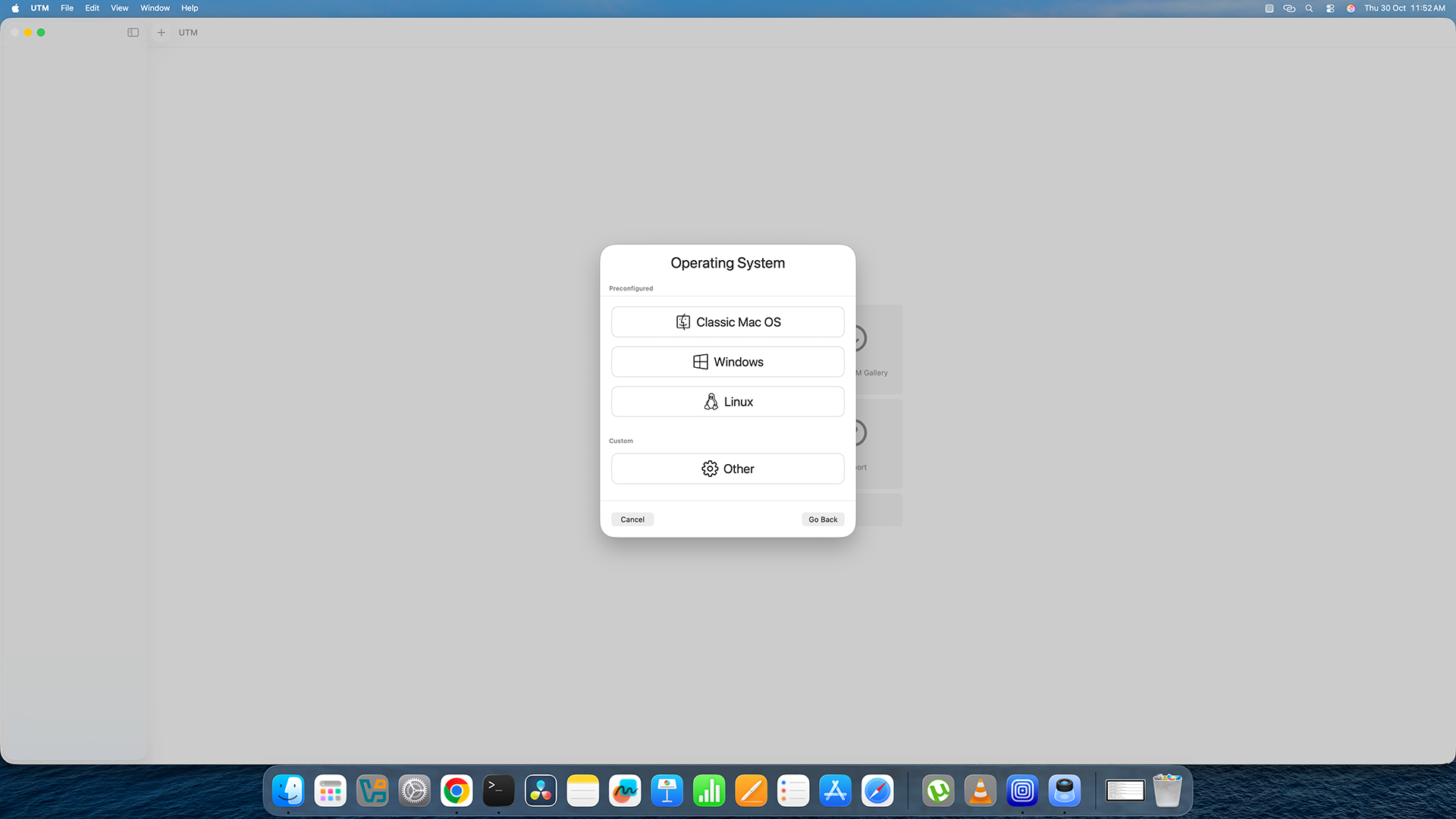
Select "Other" as the operating system type. -
5
Set Up the Hardware Settings
On the Hardware screen, change these settings:
• Machine: Select Standard PC (Q35 + ICH9) or Intel ICH9 based PC from the dropdown menu.
• Memory (RAM): Type in how much memory you want. Remember — this is in MB, not GB! (1 GB = 1024 MB, so for 2 GB type 2048, for 4 GB type 4096).
• CPU Cores: Leave this as the default — no need to change it.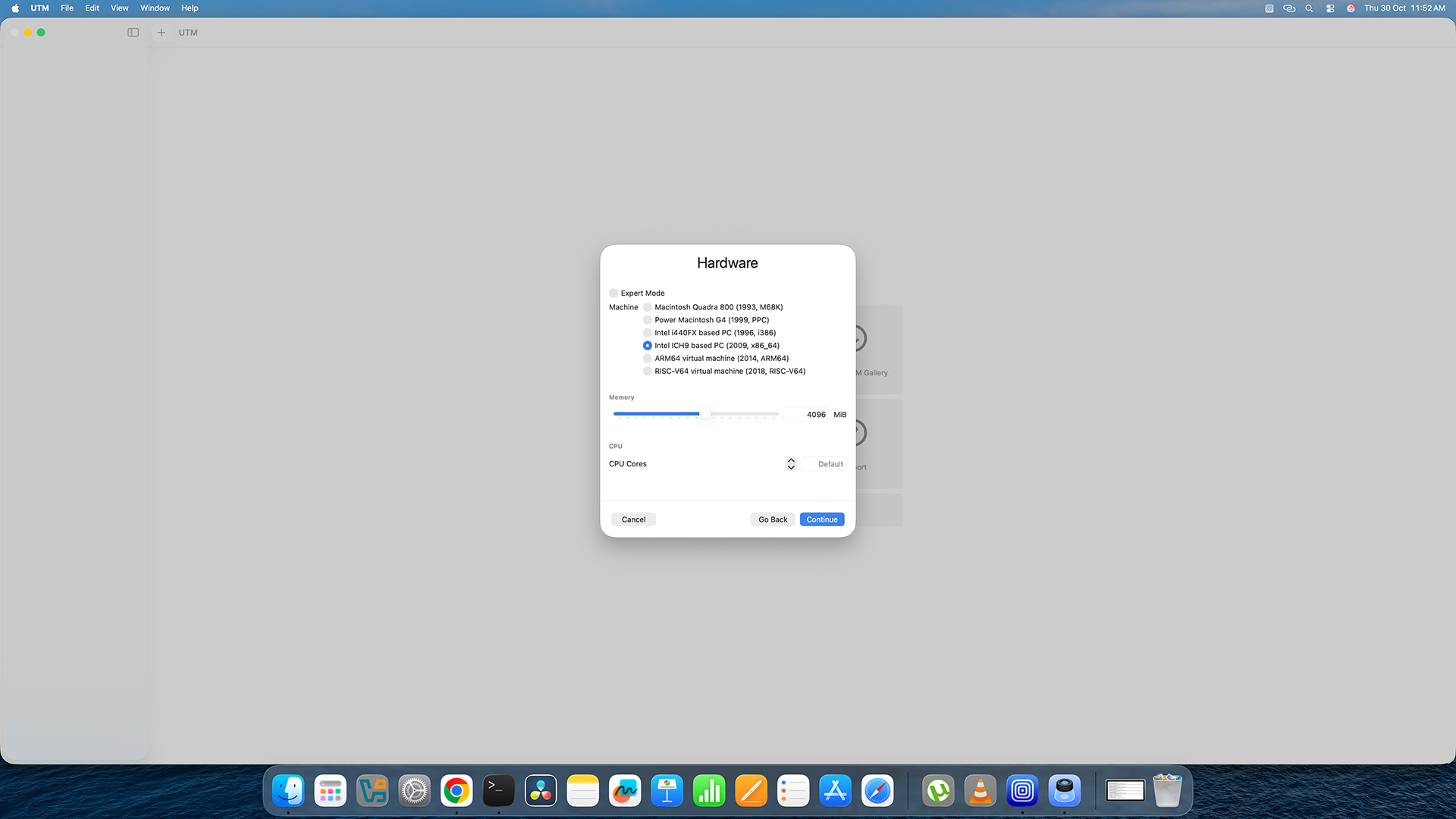
Set the machine type and memory amount on the Hardware screen. -
6
Configure the Boot Options
On the next screen (Boot settings), do the following:
• Set Boot Device to None.
• Make sure UEFI Boot is turned OFF (untick the checkbox if it is ticked).
• Click Next to continue.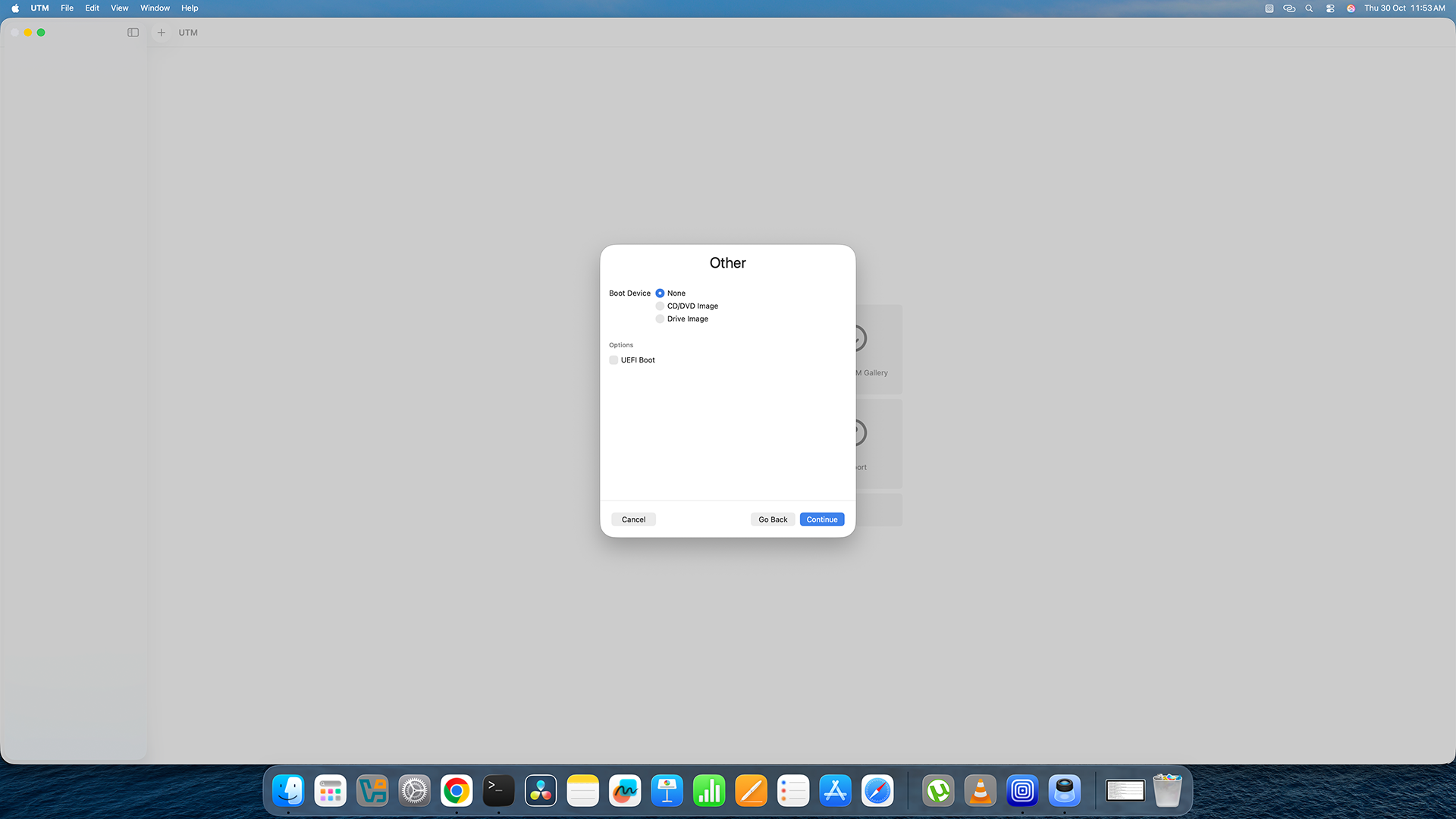
Set Boot Device to None and disable UEFI Boot, then click Next. -
7
Set the Storage Size to 2 GB
On the Storage screen, set the storage size to 2 GB. Do not worry — this is just a placeholder. We will replace this with your real qcow2 file in a couple of steps. Click Next.
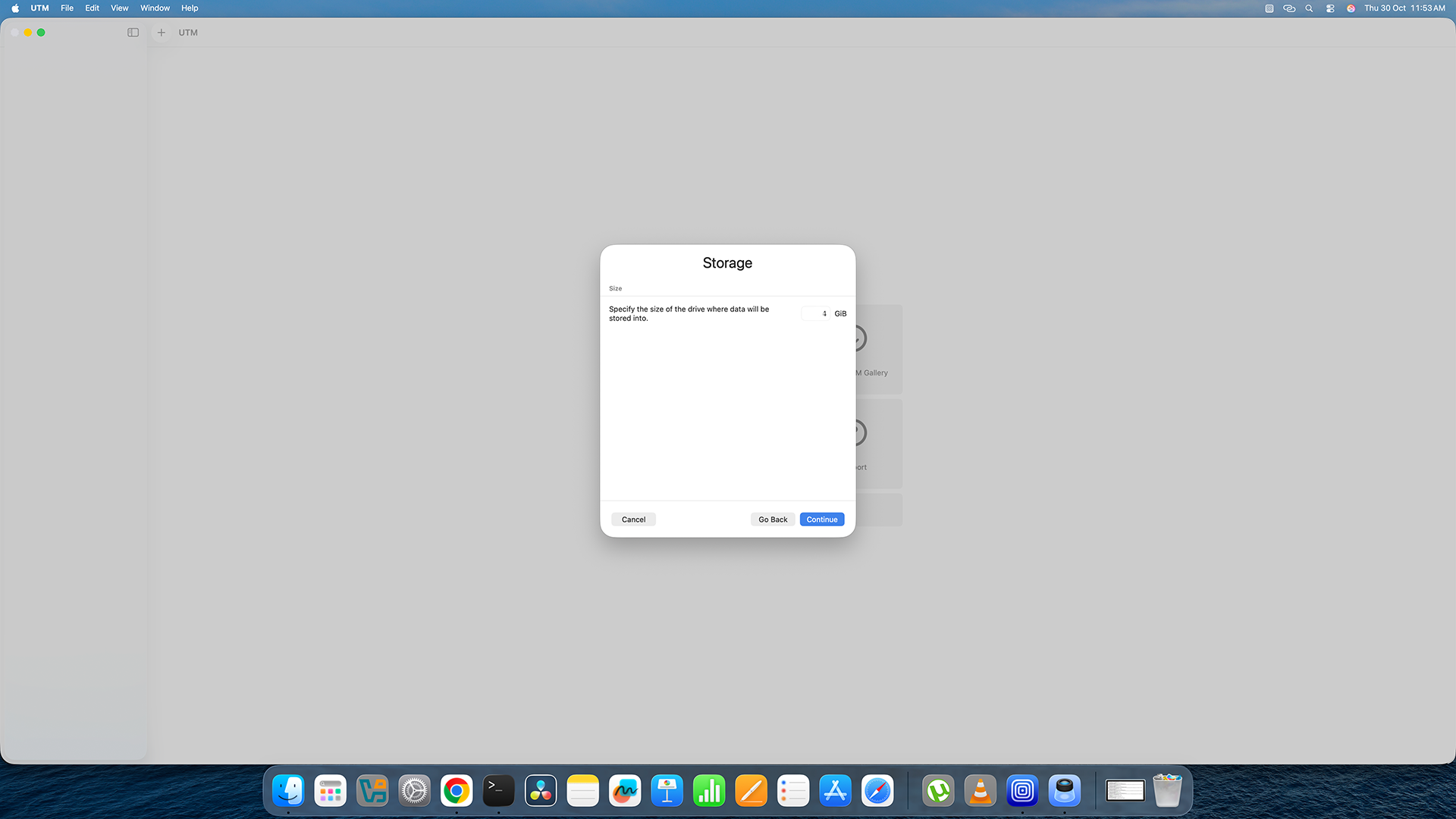
Set the storage size to 2 GB — this is just a temporary placeholder. -
8
Skip the Shared Directory Screen
The next screen asks about a shared directory. You do not need to set anything here right now. Just click Continue to move on.
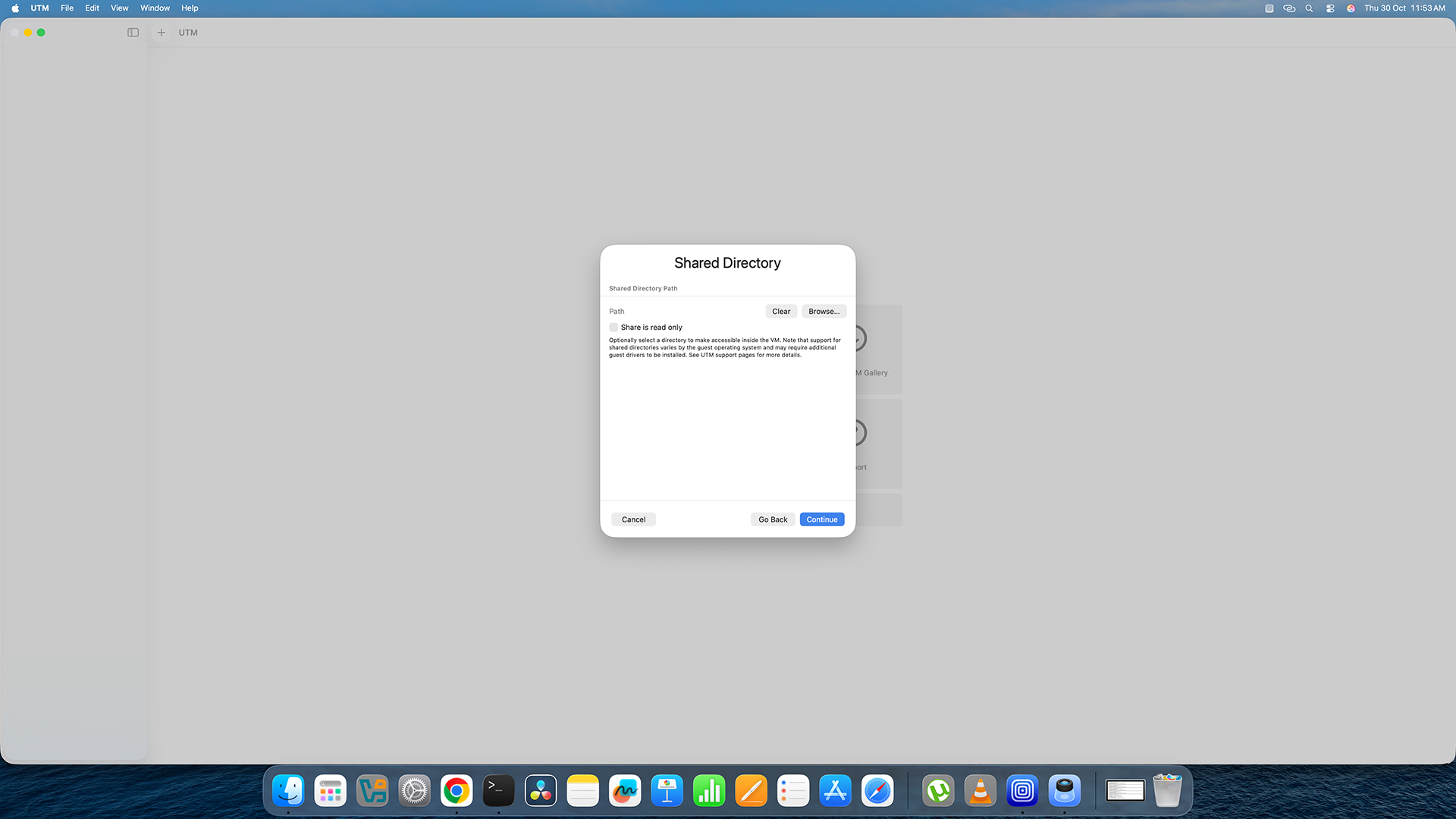
Click "Continue" on the Shared Directory screen — nothing to set here. -
9
Name Your Virtual Machine and Save It
On the Summary screen, type a name for your virtual machine in the Name field. Choose anything you like — for example: My Ubuntu VM or My Linux Machine. Then click Save.
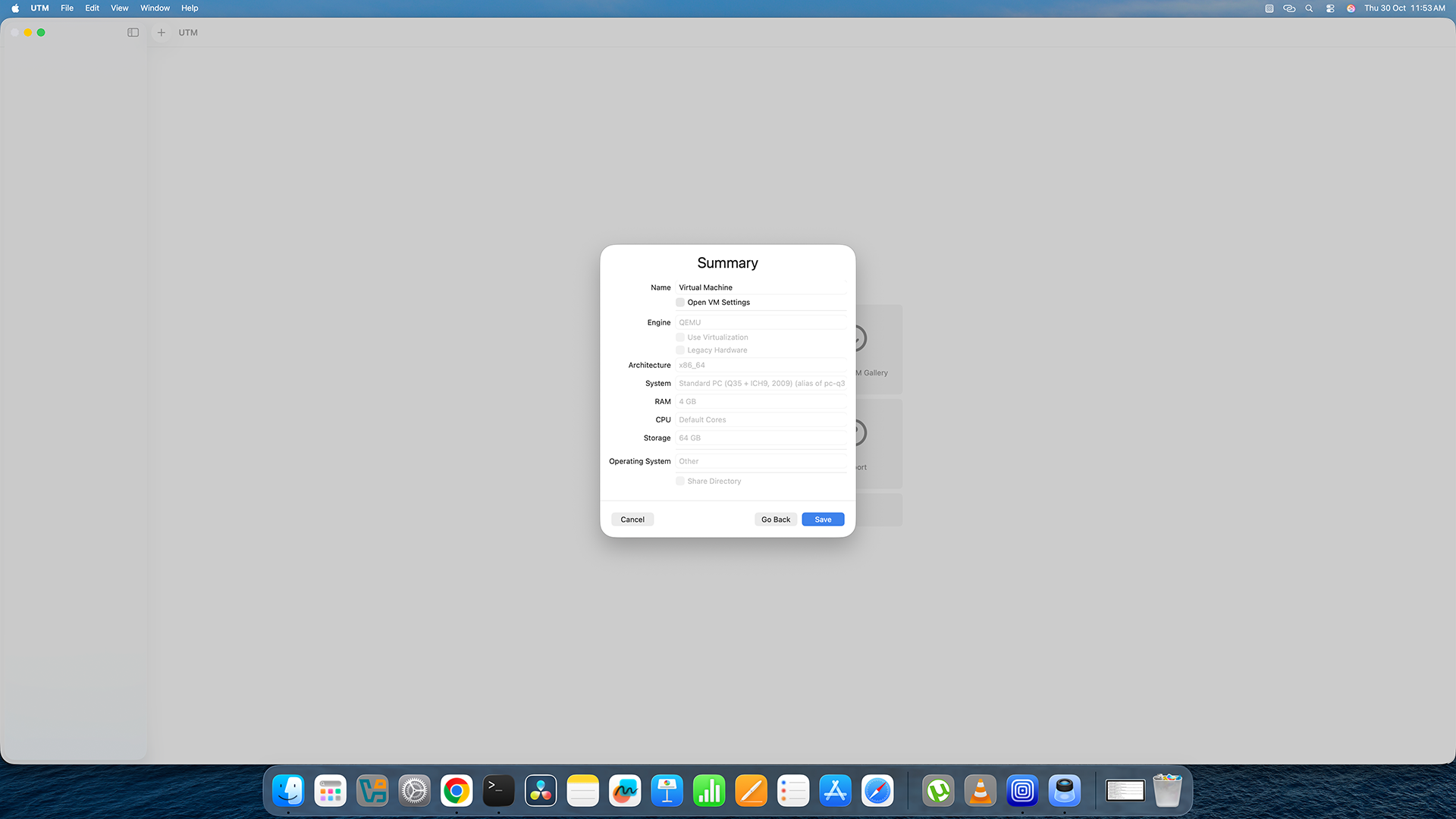
Give your VM a name and click Save to create it. -
10
Open the VM Settings to Edit It
Your new virtual machine will now appear in the UTM sidebar on the left. Right-click on it and choose Edit from the menu that appears.
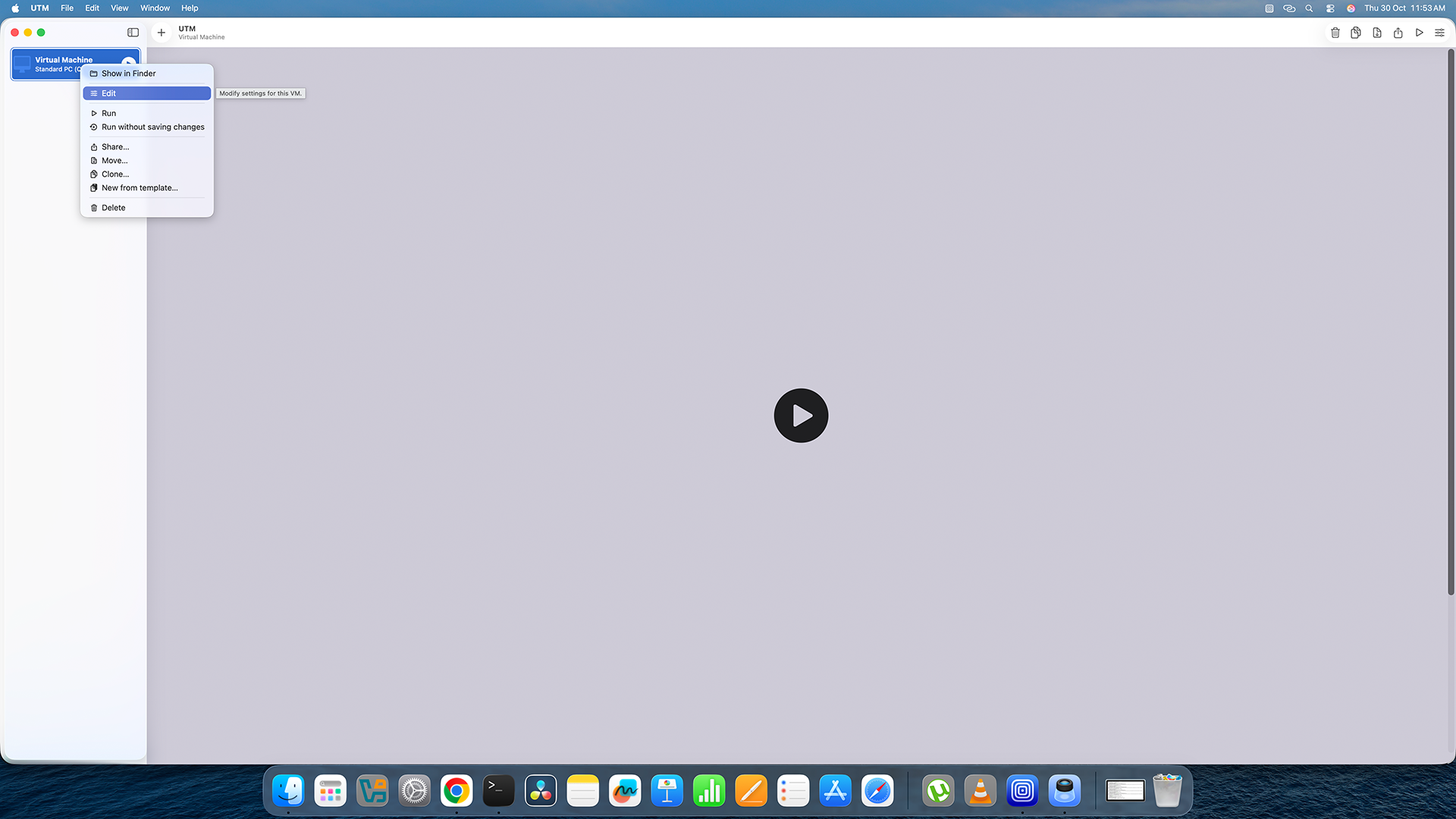
Right-click your new VM in the sidebar and select Edit. -
11
Replace the Placeholder Disk With Your qcow2 File
In the Edit window, scroll down until you see the Devices section. You will see an IDE Drive listed there — that is the placeholder we created in Step 7. Do the following:
• Click on the IDE Drive to select it, then click the Delete button (or the minus icon) to remove it.
• Now click the New button to add a new drive.
• From the options that appear, choose Import.
• Browse to your .qcow2 file and select it.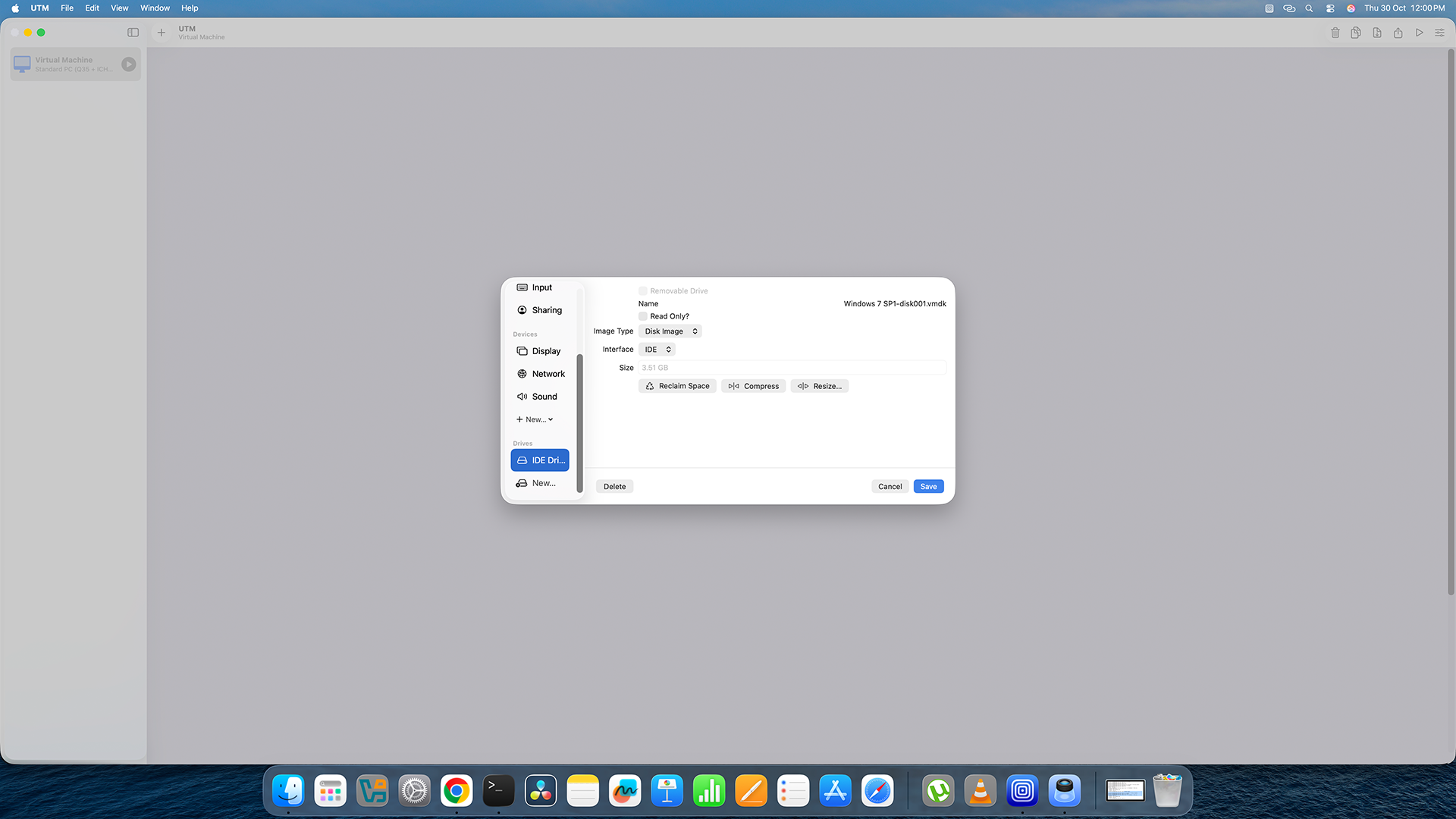
Remove the old IDE Drive, add a new one, choose Import, and select your qcow2 file. Important! Make sure you select your .qcow2 file here — not the original .vmdk file. The qcow2 file is the converted one we created in the previous steps. -
12
Save Settings and Start Your Virtual Machine!
Close the Settings window by clicking the red X button or pressing Command + W. UTM will save your changes automatically.
Now click the big Play button (the triangle icon) next to your virtual machine name in the sidebar. Your virtual machine will start booting up — you did it!
The first boot may take a little longer than usual — that is completely normal. Just wait patiently and your virtual machine will appear on screen!
-
check
Installed UTM on your Mac so you can run virtual machines.
-
check
Installed Homebrew and QEMU tools on your Mac.
-
check
Converted your virtual machine file into the qcow2 format.
-
check
Imported your virtual machine into UTM and started it successfully!